1. Function Overview
setFormatIf(reference, action, if_condition, format_true, format_false)
This function formats a cell or range of cells. The numeric action parameter specifies which formatting attributes to set or clear (restore defaults).
It is often convenient to keep formatting formulas in a separate worksheet so a single control cell can affect formatting across multiple sheets.
The function works on both existing cells and empty regions. There are no limits on the number or complexity of conditional formatting operations — millions of cells may be formatted using nested IFs or other formulas.
2. Formatting Layers
If reference specifies entire columns or rows, formatting applies to column or row styles. Formatting precedence:
table style < column styles < row styles < cell styles
Cell styles override all other styles.
3. format_true / format_false Values
Values may be -1 (restore default) or one of the following:
- 1 — numeric style (index or name)
- 2 — custom style pattern (e.g., $#,##0.00)
- 3 — font size (4–256)
- 4 — font name
- 6 — bold (0/1)
- 7 — italic (0/1)
- 8 — underline (0/1)
- 9 — strikeout (0/1)
- 11 — font color (RGB value, “#RRGGBB”, or color name)
- 14 — horizontal alignment (0 left, 1 center, 2 right)
- 15 — vertical alignment (0 top, 1 center, 2 bottom)
- 16 — wrap text (0/1)
- 17 — horizontal indent (0–64 px)
- 18 — vertical indent (0–64 px)
- 19 — text rotation (−180 to 180 degrees)
- 20 — cell borders (“position width style color”)
- 21 — borders around selection (“width style color”)
- 22 — background color (RGB value, “#RRGGBB”, or color name)
- 25 — print / don’t print (0/1)
- 26 — hyperlink (0/1)
- 27 — filter cell (0/1)
- 28 — image list cell (0/1)
- 29 — area in‑cell chart (0/1)
- 30 — column in‑cell chart (0/1)
- 31 — bar in‑cell chart (0/1)
- 32 — apply all attributes at once using a named custom style
4. Custom Cell Styles
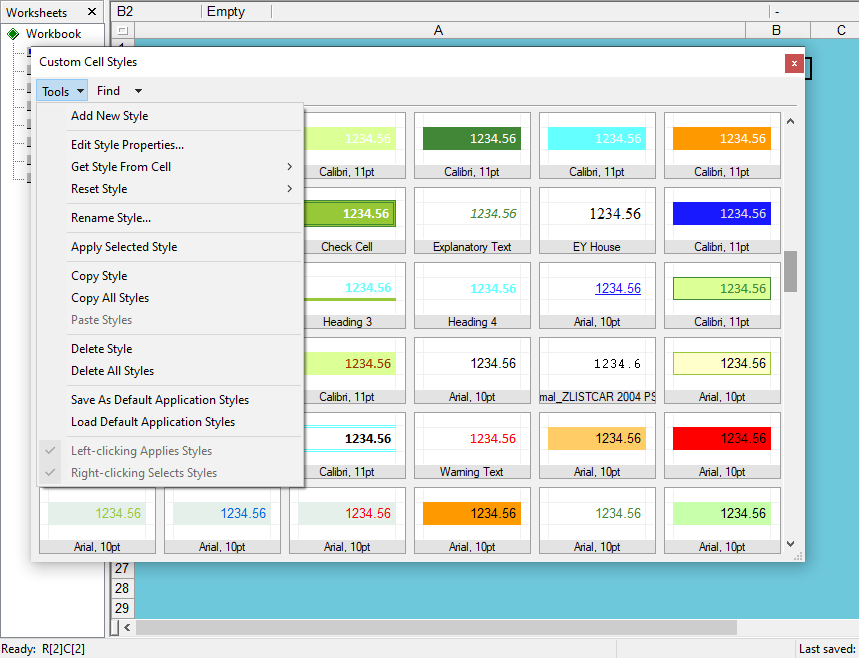
action = 32 applies all formatting attributes using a named custom style. Custom styles are created in Format > Custom Cell Styles and saved in the workbook.
They may also be saved to or loaded from the global GS-Calc cache using:
- Save As Default App Styles
- Load Default App Styles
5. Border Formatting (action = 20)
position may include:
- top
- left
- bottom
- right
- diag-left
- diag-right
width may be:
- thin, medium, thick
- numeric values with px, pt, in, mm, cm, pc
style may be:
- solid
- dotted
- dash
- long-dash
- dot-dash
- dot-dot-dash
- wave
- double
color may be an RGB value, “#RRGGBB”, or one of:
- black
- maroon
- green
- olive
- navy
- purple
- teal
- gray
- silver
- red
- lime
- yellow
- blue
- fuchsia
- aqua
- white
6. Return Value
The function returns the evaluated value of if_condition.
7. Custom Cell Styles Dialog

8. Examples
setFormatIf(c120, 11, c120 > 0, "green", "red")
setFormatIf(c:e, 11, c120 > 0, "green", "red")
setFormatIf(10:20, 11, c120 > 0, "green", "red")
setFormatIf(c120, 20, c120 > 0, "all 2px solid green", "diag-left diag-right red")
setFormatIf(d100:d999, 1, c1="use format", "currency", 0)
setFormatIf(d99, 20, a1, "bottom 2px dotted green", -1)
setFormatIf(d99, 32, a10 > 10, "my-style-1", "my-style-2")