Along with the "Verify Files" command, GS-Base introduces a few additional "file management" commands to mass-rename, copy/move, and delete files on your disks.
Renaming Files
To mass-rename files on your disks, create a table with file paths from given folders or disks.
You can load it using, for example, the Tools > Verify Files command. Then select the column with file paths or some
subset/range of paths from that column and use the Tools > Manage Files > Rename command.
You can filter files to be renamed any way you want: substrings in their file names/paths using regular expressions,
the standard file metadata, your own added custom attributes, or EXIF (photos/images/mp4) tags.
Renaming uses a regular expression to specify which patterns to look for and how to modify the found text. Renaming concerns strictly the file name with its extension only, excluding the rest of the path.
For example, to change the file extensions for all files from "txt" to "csv" on a disk or in some folders, you can use the following expressions:

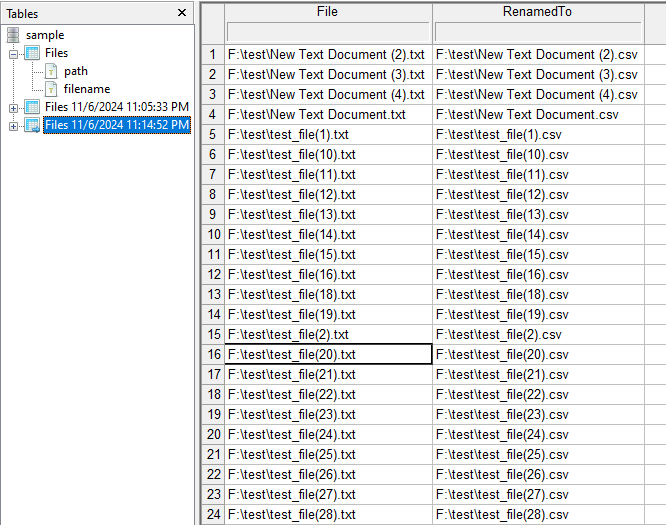
All performed changes can be saved in time-stamped tables, for example:
Copying Files
Similarly, use the Tools > Manage Files > Copy command to mass-copy any number of filtered files from your disk to a given single location and save the report. Repeated file names are automatically modified by adding the "(n)" suffix, like fname.png → fname(1).png, fname(2).png, etc.
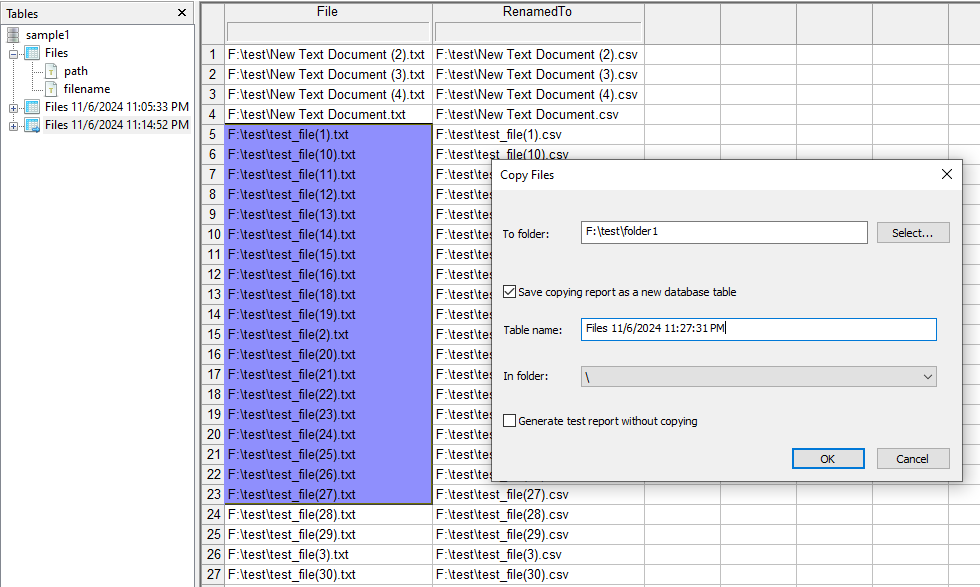
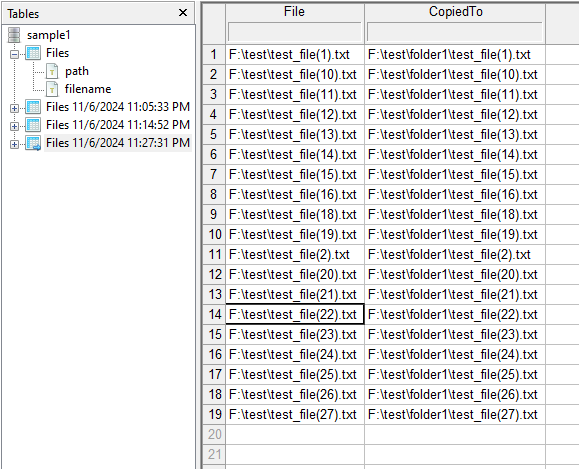
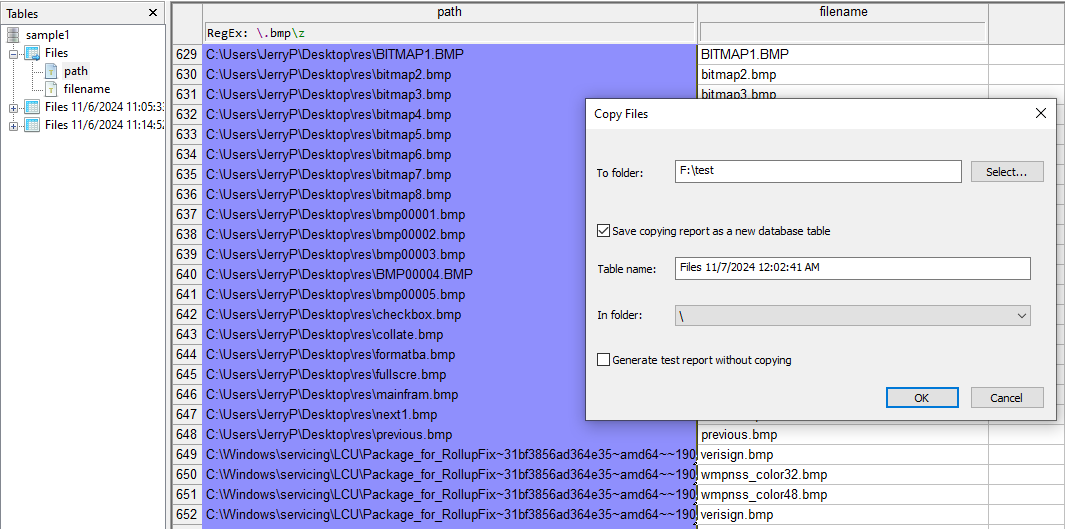
You can copy groups of files from any locations, applying any filters:
Deleting Files
The "Delete Files" command can be useful, e.g., to remove original files after making their copies in a given folder, or to remove duplicated files, etc. Reports about deleted files are created optionally, like for the previous two commands.
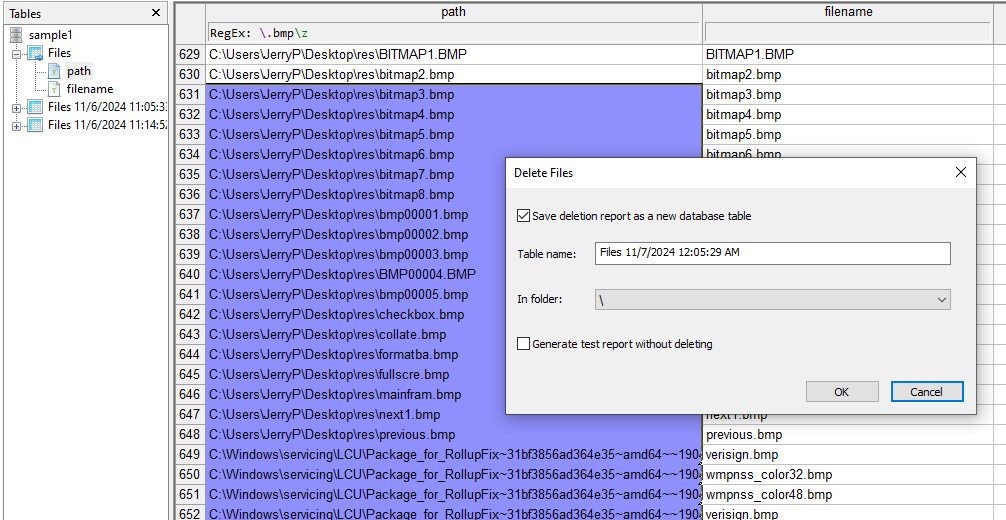
You can also check the "Generate test report" check box to verify/browse the report data first, without performing any actual renaming, copying, or deleting of files.
Note: test reports don't include/generate the "(n)" suffixes mentioned above for the Tools > Manage Files > Copy command.